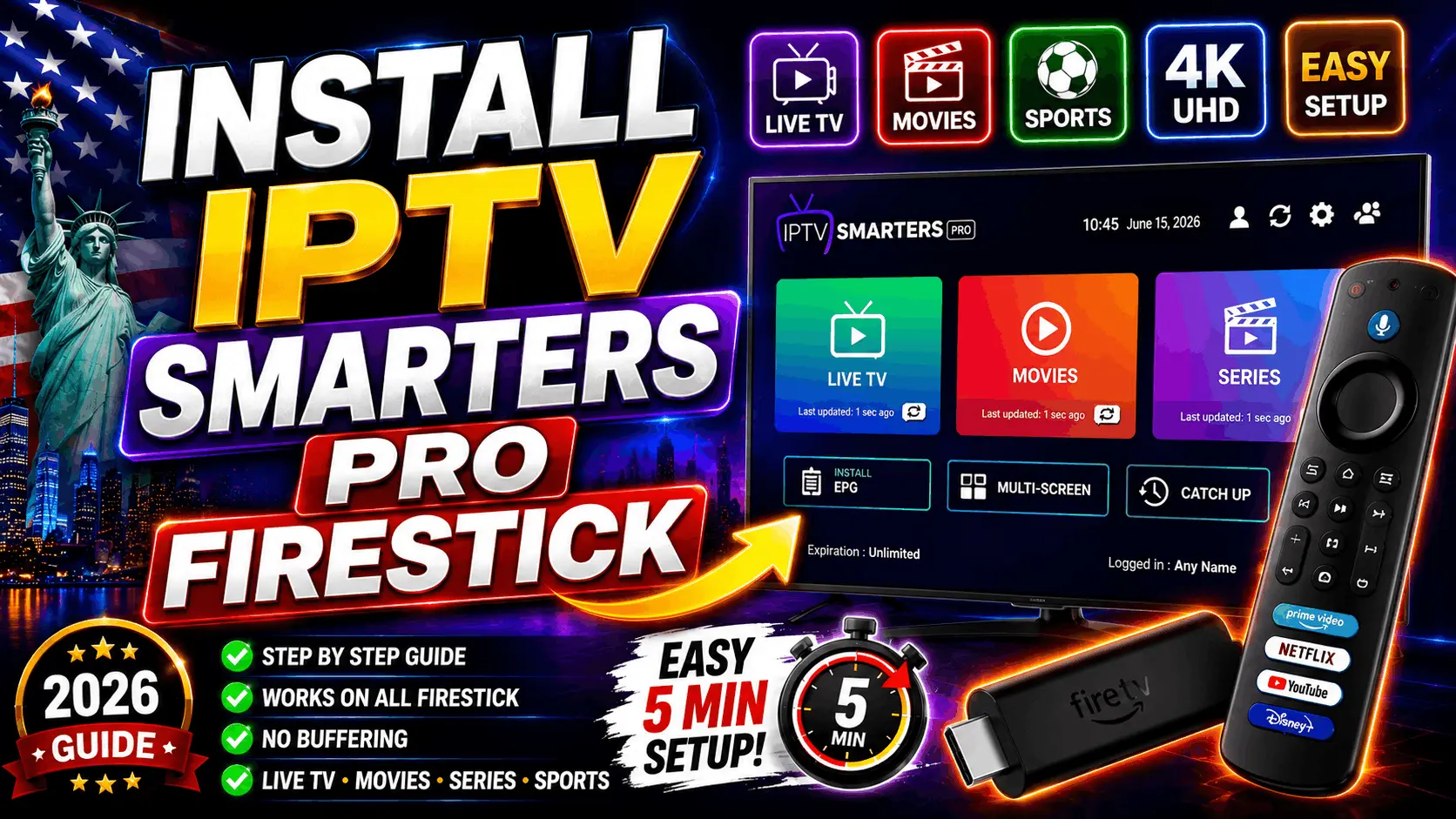

The Amazon Firestick is the most popular streaming device in the United States — cheap, versatile, and available at every Best Buy and Amazon. It's also the go-to device for IPTV. In this guide, we walk through exactly how to install IPTV Smarters Pro on Firestick in under 10 minutes.
This guide works for all Firestick models — Firestick HD, Firestick 4K, and the current Firestick 4K Max. No technical background required.
📦 Before you start: You'll need your Firestick set up on your TV, an Amazon account, and your Vivimate IPTV credentials (M3U URL or Xtream Codes) — sent by email after you subscribe.
Prerequisites
Before installing IPTV Smarters Pro on your Firestick, make sure you have:
- 📺 An Amazon Firestick (any model: HD, 4K, or 4K Max)
- 🌐 A stable internet connection (minimum 15 Mbps for HD, 25 Mbps for 4K)
- 📧 Your IPTV credentials (received by email after subscribing to Vivimate)
- ⏱️ About 10 minutes of free time
If you don't have an IPTV subscription yet, see our plans or check out our free trial guide.
Step 1: Enable Apps from Unknown Sources
By default, Firestick blocks apps that don't come from the Amazon App Store. IPTV Smarters Pro needs to be installed manually (sideloaded), so we need to enable this option first.
Open Settings
From the Firestick home screen, navigate to the top menu and select Settings (the gear icon).
Go to My Fire TV
Scroll right and select My Fire TV. On older Firesticks, this might be called Device.
Open Developer Options
Select Developer Options. If you don't see it, go back and click "About" seven times on the "Fire TV Stick" line — this unlocks Developer Options.
Enable "Apps from Unknown Sources"
Turn on Apps from Unknown Sources. A warning will appear — click Turn On to confirm.
Step 2: Install the Downloader App
Downloader is a free official Amazon app that lets us install other apps from URLs. It's how we get IPTV Smarters Pro onto the Firestick.
Search for Downloader
From the Firestick home screen, press the search icon (magnifying glass) and type Downloader.
Install Downloader
Select the Downloader app (orange icon with a down-arrow) and click Download or Get. Wait for it to install.
Step 3: Install IPTV Smarters Pro
Open Downloader
Launch the Downloader app you just installed. On first launch, allow it access to files when prompted.
Enter the download code
In the URL field, enter the code 481220 and click Go. This is a shortcut code that directs Downloader to the IPTV Smarters Pro APK.
Download and install
Wait for the APK to download (about 15-30 seconds), then click Install when prompted. Once installed, click Done.
Delete the APK file (optional)
Downloader will ask if you want to delete the installation file. Click Delete to save space on your Firestick.
Step 4: Configure IPTV Smarters Pro
Now that IPTV Smarters Pro is installed, we need to link it to your Vivimate subscription.
Open IPTV Smarters Pro
Go to your Firestick home screen, scroll down to Your Apps & Channels, and open IPTV Smarters Pro. Accept the terms of use when prompted.
Choose "Load Your Playlist or File/URL"
On the login screen, select Load Your Playlist or File/URL. There are two ways to add your subscription — via M3U URL (simplest) or Xtream Codes API.
Enter your Vivimate details
Enter any name (e.g. "Vivimate") in the name field, then paste your M3U URL received by email from Vivimate. Click Add User.
Wait for the playlist to load
IPTV Smarters Pro will fetch your channel list. This takes about 30-60 seconds for the first load — you'll see a progress indicator.
Start watching
Once loaded, you'll see the main dashboard with Live TV, Movies, Series, and Catch Up sections. Click Live TV to browse channels by category. Click any channel to start streaming.
Optimizing Streaming Quality
Once you have IPTV Smarters Pro working, a few tweaks will improve your streaming experience:
Set the correct player
Go to Settings → Player Selection → Live TV Player and choose IJKPlayer. This handles live streams more reliably than the default Android player.
Enable EPG (TV Guide)
In Settings → EPG, make sure EPG is enabled. This gives you the traditional grid TV guide showing what's on now and later.
Set video quality
If you have a Firestick 4K or 4K Max, go to Firestick Settings → Display & Sounds → Display → Video Resolution and set it to 2160p (4K). This lets IPTV Smarters Pro serve 4K streams properly.
Looking for a full comparison of IPTV apps for Firestick? Check our best US IPTV providers 2026 guide.
Troubleshooting Common Issues
Channels won't load
Usually a network issue. Try restarting your Firestick (Settings → My Fire TV → Restart). If the problem persists, contact your IPTV provider's WhatsApp support — they can verify your subscription is active and re-issue credentials if needed.
Buffering during live TV
Check your internet speed on the Firestick (Settings → My Fire TV → Network). You need at least 15 Mbps for HD, 25 Mbps for 4K. If your speed is fine, try switching to the IJKPlayer in IPTV Smarters settings.
App crashes on launch
Uninstall IPTV Smarters Pro (Settings → Applications → Manage Installed Applications → IPTV Smarters Pro → Uninstall), then reinstall via Downloader with code 481220.
Wrong time zone in EPG
Go to IPTV Smarters Pro Settings → Time Format → and set it to your local time zone.
FAQ: IPTV Smarters Pro on Firestick
Is IPTV Smarters Pro free?
Yes. The IPTV Smarters Pro app is free to download and use. You only need an IPTV subscription (M3U URL or Xtream Codes) to access channels.
What's the difference between IPTV Smarters Pro and TiviMate?
Both are excellent. IPTV Smarters Pro is easier for beginners and has a straightforward interface. TiviMate has a more modern UI with advanced EPG features but requires a premium subscription for some features. For your first setup, we recommend IPTV Smarters Pro.
My Firestick is old — will it work with IPTV?
If your Firestick is more than 3 years old, consider upgrading to a Firestick 4K Max for a better experience. Newer models are about 40% faster and handle 4K HDR streaming much better.
Can I install IPTV Smarters Pro without Downloader?
Yes, via other methods (ES File Explorer, AppLinked, etc.), but Downloader is the simplest and most reliable method. It's also completely legitimate and available in the official Amazon App Store.
Can I have multiple users in IPTV Smarters Pro?
Yes. You can add multiple profiles (each with different credentials) in the app — useful if different family members have different subscriptions or preferences.
Conclusion
By following this guide, you've turned your Amazon Firestick into a full IPTV box with access to 30,000+ live channels, 150,000+ movies and series in 4K HDR, and full US sports coverage — for less than what one month of cable costs.
The installation takes about 10 minutes and runs reliably once set up. If you have any issues along the way, our 24/7 support team is on WhatsApp — feel free to reach out via the Contact page.
Not subscribed yet? See our plans or read our complete IPTV USA 2026 guide to learn more.